
How to Find a Color's Hex Code, Then Convert It to Whatever You Need
To find the hex code of a color on your screen, use your browser's built-in eyedropper (Chrome and Firefox both have one in DevTools) or your operating system's color picker (Digital Color Meter on Mac, PowerToys Color Picker on Windows) to sample the pixel directly — no separate tool required. Once you have that hex code, a color converter turns it into RGB, HSL, or any other format your project needs.
These are genuinely two different steps, and conflating them is the most common confusion around this question. Here's each one, in order.
Step one: sampling the color from your screen
Chrome and Firefox DevTools both include a built-in eyedropper: open DevTools, find any color value in the Styles or Inspector panel, click the small color swatch next to it, and the eyedropper icon lets you click any pixel on the page to sample its exact hex value. This works for any color visible on a webpage, not just ones already in the page's own CSS.
For a color anywhere on your screen — not just in a browser — macOS has a built-in Digital Color Meter app, and Windows users can use the free PowerToys Color Picker utility. Both report the exact hex value under your cursor and copy it to your clipboard.
Step two: converting the hex code you found
Once you have the hex value, converting it to the format your project actually needs is a separate, much simpler step. CSS accepts hex, rgb(), and hsl() everywhere, so the choice is about which is easiest to work with for the task at hand — RGB for programmatic manipulation, HSL for adjusting lightness or saturation by feel.
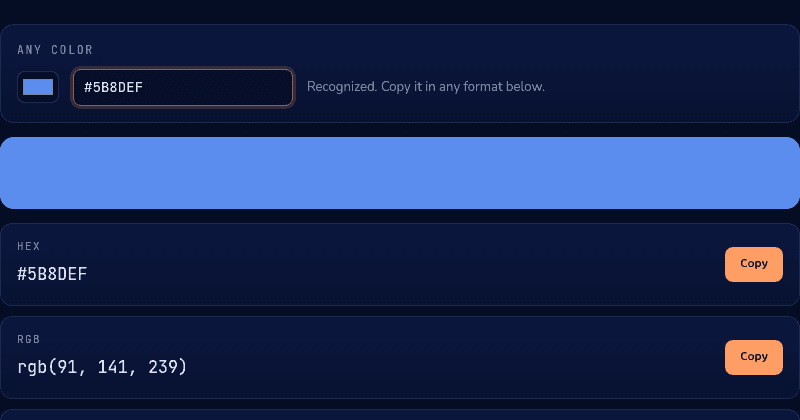
Paste the hex code you sampled into a converter and get every format at once, rather than doing the base-16-to-base-10 math by hand.
Convert what you found
Paste the hex code you sampled into our Color Converter and get the matching RGB and HSL values instantly, each with its own copy button. It runs entirely in your browser.